The desktop front end#
solprop-gui is a desktop window for setting up, running and reading solprop
simulations without writing a script. It is written for physicists who know the
experiment they want to model: a setup is described in physics terms (a capillary’s
core radius, a gas and its pressure, a pulse’s wavelength, duration and energy), and
solprop’s own keyword names stay behind an Advanced section.
The front end is experimental. Its window, its workflow and the files it writes for itself may change between releases before 1.0; the recipes and results files it makes are solprop’s own, and keep solprop’s guarantees.
The window holds no physics of its own. Every number it shows, from a soliton order on
the setup sheet to a pulse’s width on a results page, is computed by solprop; every
setup it writes is a solprop recipe, which solprop run and
Recipe.load read in the same way; and every run is an ordinary solprop results file
that the processing functions read. What you build in the
window can be continued in a script, and a script’s recipe can be opened in the window.
Installing and starting it#
The front end is an extra of solprop, installed with it:
uv pip install "solprop[gui]"
solprop-gui
or, with pip, python -m pip install "solprop[gui]". It runs on the platforms of
the installation page, with the native backend
those wheels carry. From a checkout of the repository, add the extra to the
environment and start the window without syncing it again:
uv sync --extra gui
uv run --no-sync solprop-gui
uv sync builds the native backend from native/ and needs a C++20 compiler; with no
compiler, follow the lightweight setup of
contributing and install the wheel CI built with
uv run --no-sync poe fetch-wheel.
On Linux the window needs a few system libraries that Qt loads. On Debian or Ubuntu:
sudo apt install libegl1 libxkbcommon0 libxcb-cursor0
The window is drawn with Qt (PySide6) and pyqtgraph. Its publication figures are
drawn with Matplotlib through solprop.plotting, so they match the figures a
script makes.
The window#
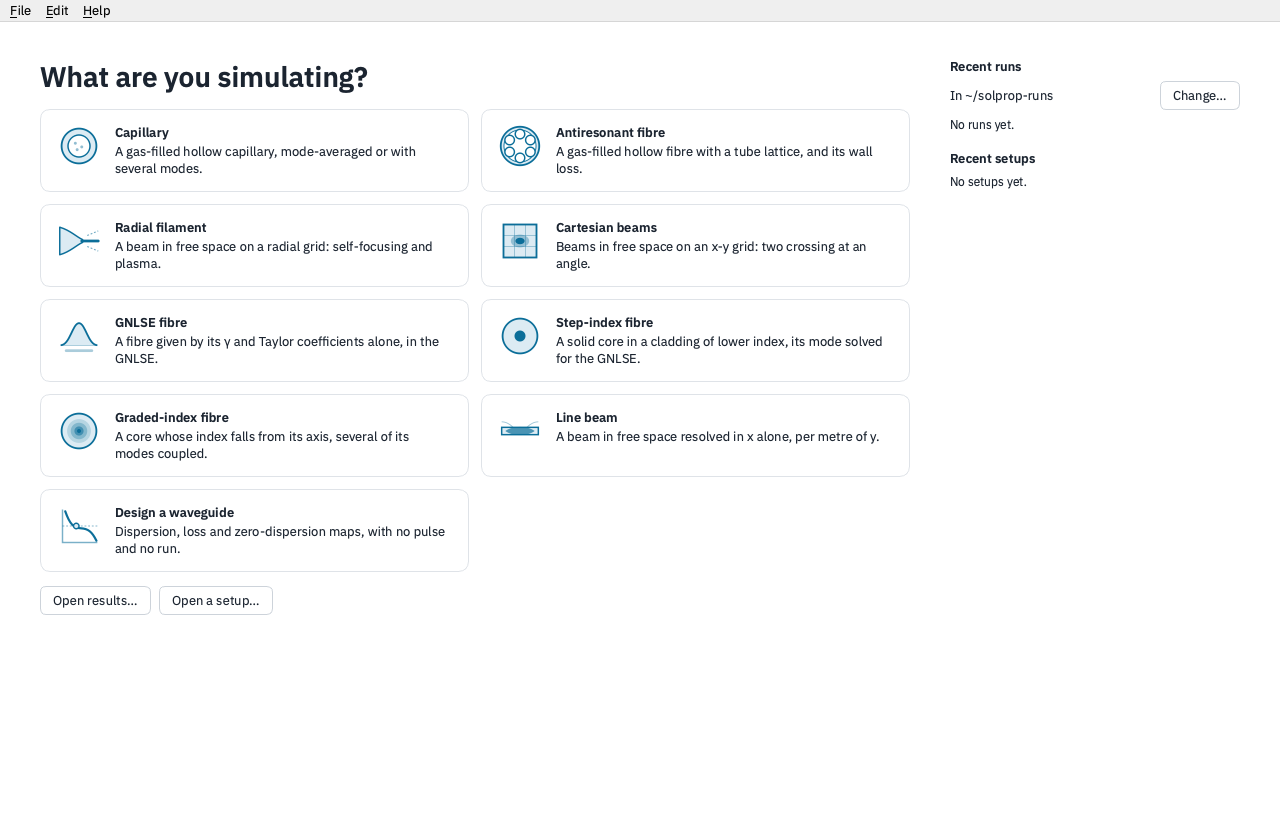
A bar across the top of the window names the stage you are on:
stage |
what it is for |
|---|---|
Home |
Choose what to simulate, design a waveguide, or open a setup or a results file |
Setup |
One sheet of the setup’s parameters, with the numbers they give and a preview plot |
Run |
The run as it goes: its progress, and the spectrum and pulse growing along z |
Analyse |
Pages of the results, all at one position along z |
Scan |
A scan over one or more of the setup’s parameters, and its results |
The button at the right of the bar does the stage’s main thing: Run on a setup, Stop while a run goes, Rerun afterwards, Run scan on the Scan stage and Simulate this when designing a waveguide. The ⋯ menu beside it saves the setup, shows it as a recipe, or shows it as the Python that builds it. File and Edit hold the same with their usual shortcuts; every change to a setup is one step of Undo. Help → User guide (F1 on Windows and Linux) opens this chapter in a window of its own; it comes with the front end, so it reads offline. Help → About solprop gives the versions running and the project’s links.
A run goes into a folder of its own, <date>-<title>, holding its results file
run.h5, the recipe it ran (recipe.toml) and its log (run.log). The folders are made
in ~/solprop-runs unless you choose another with Change… under Recent runs on
Home; the window remembers the choice. The folder is the record: Home lists what it
finds there, and copying a run’s folder elsewhere loses nothing.
In this chapter#
A first simulation follows one setup from Home to its results: a resonant dispersive wave in a helium-filled capillary.
The problem classes describes what each tile on Home sets up, and the numbers and pages it has.
Reading the results covers the Analyse pages, the plot tools and exporting.
Scans runs a setup over a grid of its parameters.
Designing a waveguide explores a guide’s dispersion, loss and phase matching with no pulse and no run.
Running on other machines sends runs and scans to a workstation, a Slurm cluster or a rented machine over SSH, and lists every run on every machine.